Help Centre
Everything you need to know about using GoZappify
Getting Started
Get up and running in 5 minutes
Welcome to GoZappify! Follow these three simple steps to start processing your supplier invoices automatically.
Connect Your Accounting Software
GoZappify integrates with QuickBooks Online and Xero. Connecting allows us to sync products, match customers, and create invoices automatically.
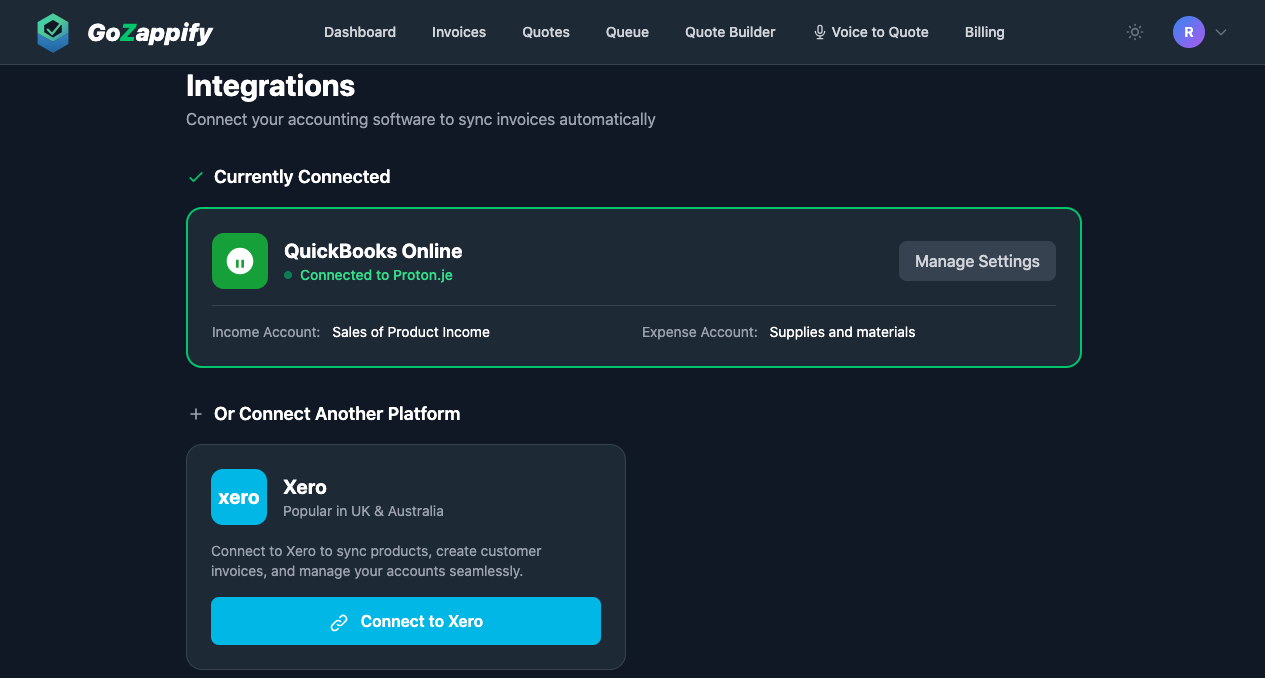
Where to find it: Go to Settings → click "Manage Integrations" → click "Connect to QuickBooks" or "Connect to Xero"
Set Your Markup Percentage
Configure how much profit margin to add to your cost prices. This determines the selling price shown on customer invoices.
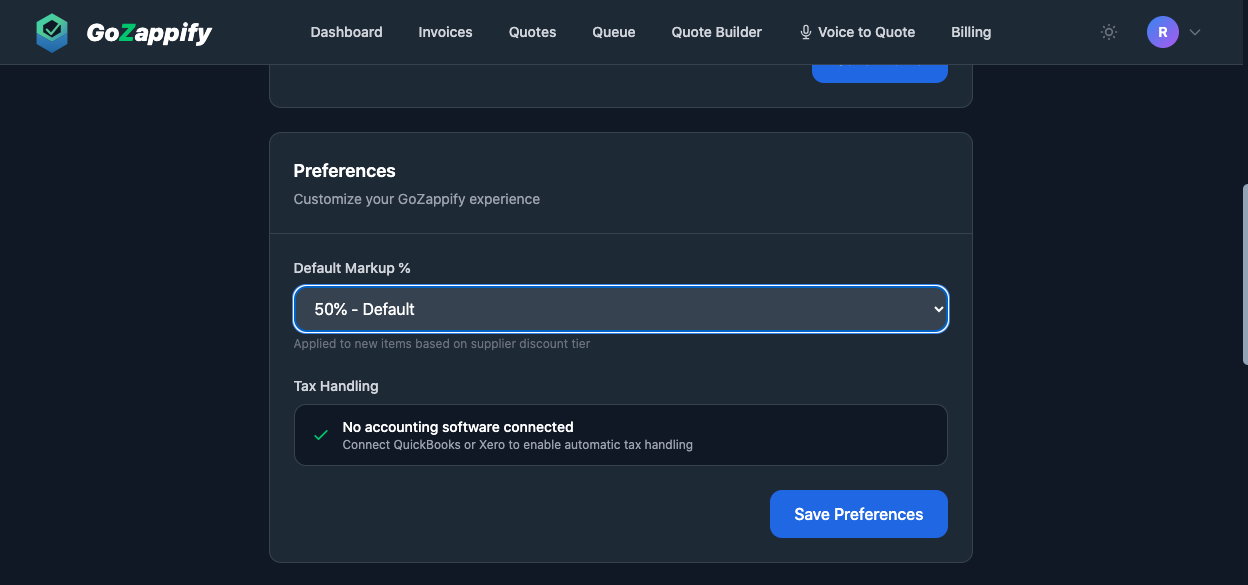
How markup works: With a 30% markup, a £10 cost becomes £14.29 selling price.
Formula: Selling Price = Cost ÷ (1 - Markup%)
Upload Your First Invoice
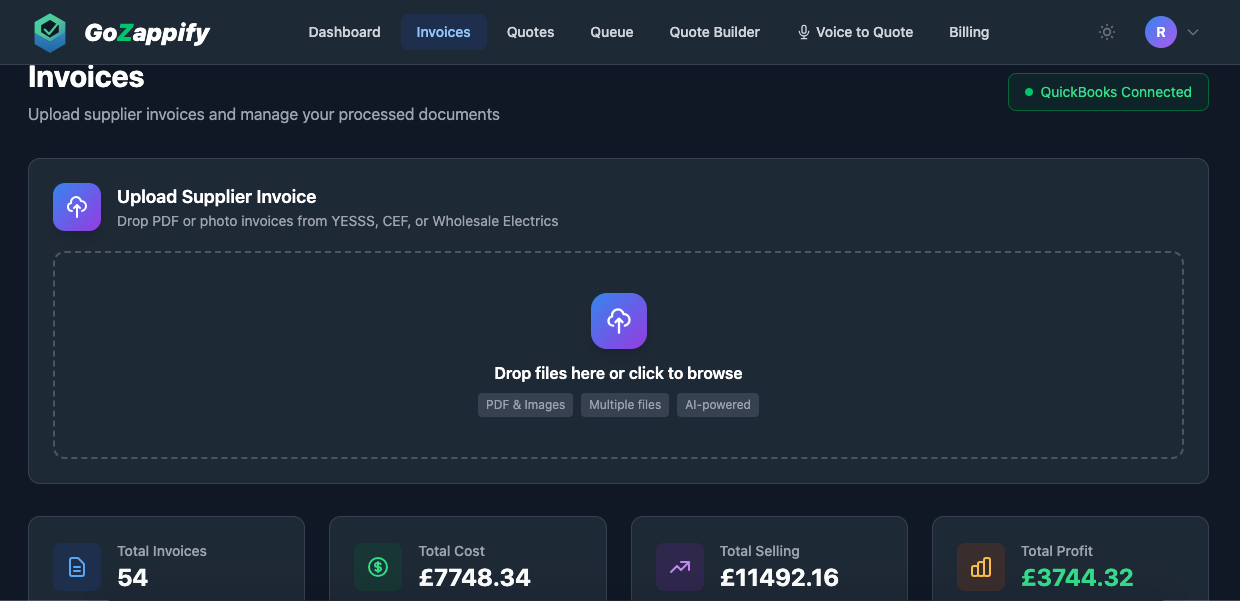
Go to the Invoices page and upload a supplier invoice. Our AI will automatically extract all line items, prices, and calculate your selling prices.
Uploading Invoices
How to upload and what to expect
Supported File Types
PDF Files
⭐ Recommended - Best accuracy
Download invoices directly from your supplier's website or email for the most accurate results.
Photos
JPG, PNG - Great for on-site
Take a photo with your phone when you're on site. Works with WhatsApp photos too!
How to Upload
Click "Invoices" in the navigation bar
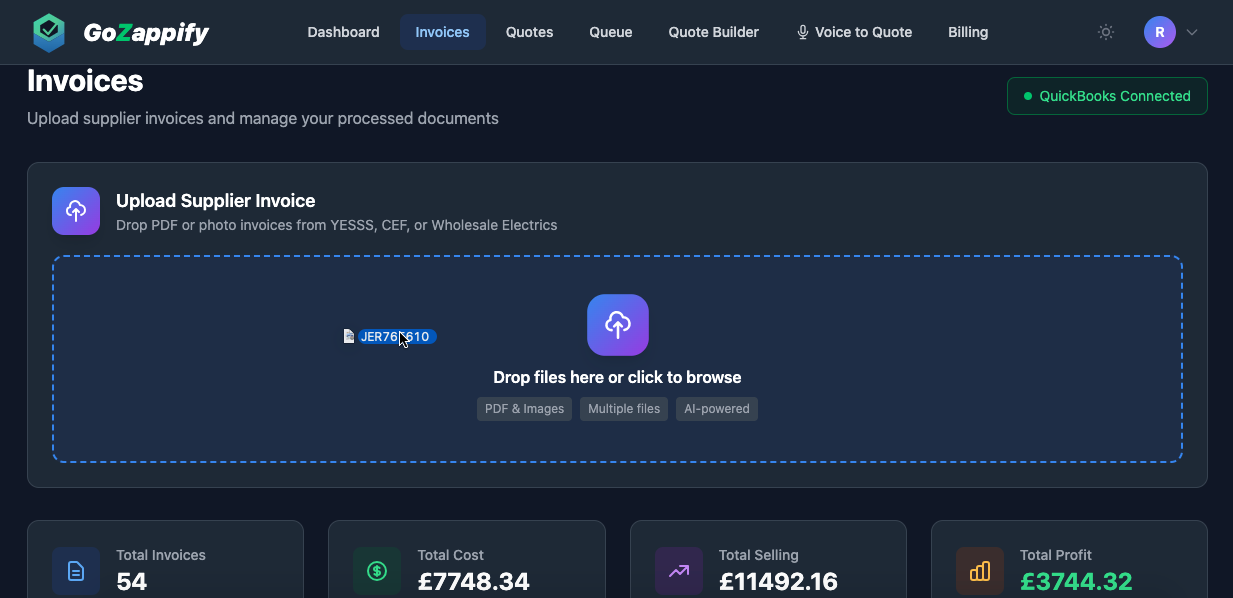
Drag and drop files onto the upload area, or click to browse
Click "Process Invoice" and wait for the AI to extract the data
Done! Your invoice appears in the list with all items extracted
📱 Tips for Taking Photos
Good lighting
Ensure the invoice is well-lit with no shadows
Flat surface
Place invoice flat, not crumpled or folded
Straight angle
Photograph from directly above, not at an angle
Full page visible
Include all line items in the frame
Avoid blur
Hold steady or rest phone on surface
Avoid glare
Watch out for reflections on glossy paper
Supported Suppliers
GoZappify has been specifically optimised for these UK electrical wholesalers:
Other suppliers may work but with varying accuracy. Contact us to request support for additional suppliers.
Consolidated Invoices
Some suppliers combine multiple job orders onto a single invoice. GoZappify automatically detects this and splits the invoice by job reference, so each job gets its own set of line items.
Connecting QuickBooks
Step-by-step QuickBooks Online integration
How to Connect
Go to Settings → click "Manage Integrations" to find the QuickBooks section
Click "Connect to QuickBooks" - you'll be redirected to Intuit
You'll see the Intuit sign-in page where you enter your QuickBooks credentials.
Sign in and authorise GoZappify to access your QuickBooks data
Intuit will ask you to authorise GoZappify to access your QuickBooks data. Click "Connect".
You'll be redirected back to GoZappify - you're connected!
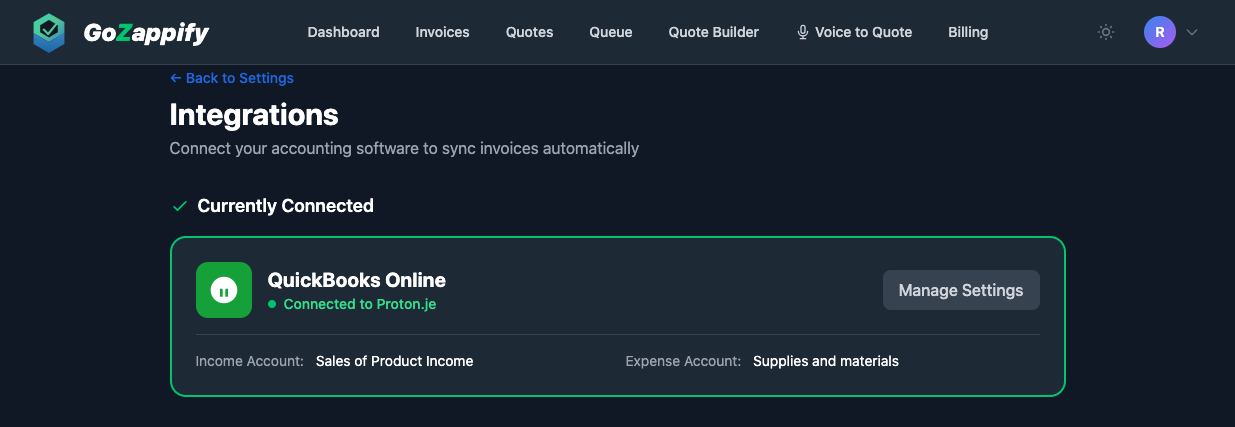
What GoZappify Accesses
Products
To match and create items
Customers
To match job references
Invoices
To create and update
🔒 Security: We use OAuth 2.0 for secure authentication. We never see or store your QuickBooks login credentials.
Connecting Xero
Step-by-step Xero integration
How to Connect
Go to Settings → click "Manage Integrations" → click "Connect to Xero"
Sign in to your Xero account
Select the organisation you want to connect
Authorise GoZappify and you're done!
Once connected, you'll see a green "Xero Connected" badge in your Settings page, similar to the QuickBooks connection shown above.
The process works the same as QuickBooks - products are synced, customers are matched, and invoices are created automatically.
Syncing Invoices
How to sync processed invoices to your accounting software
Step-by-Step Syncing
Click on any invoice in the list to open it
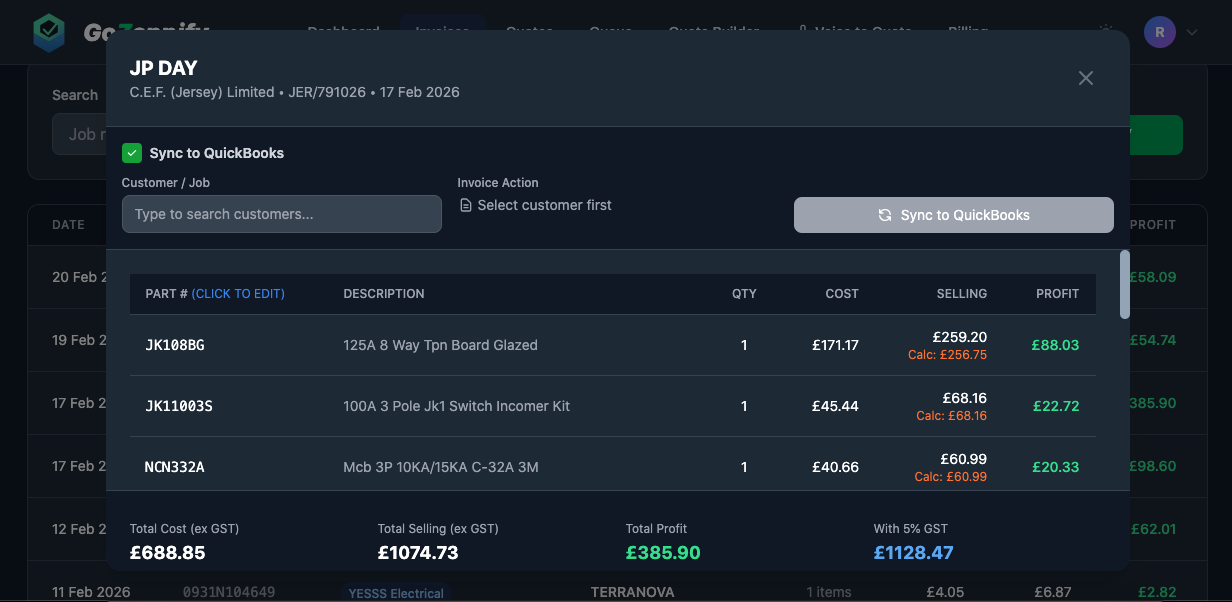
Select a customer from the dropdown (or use the suggested match)
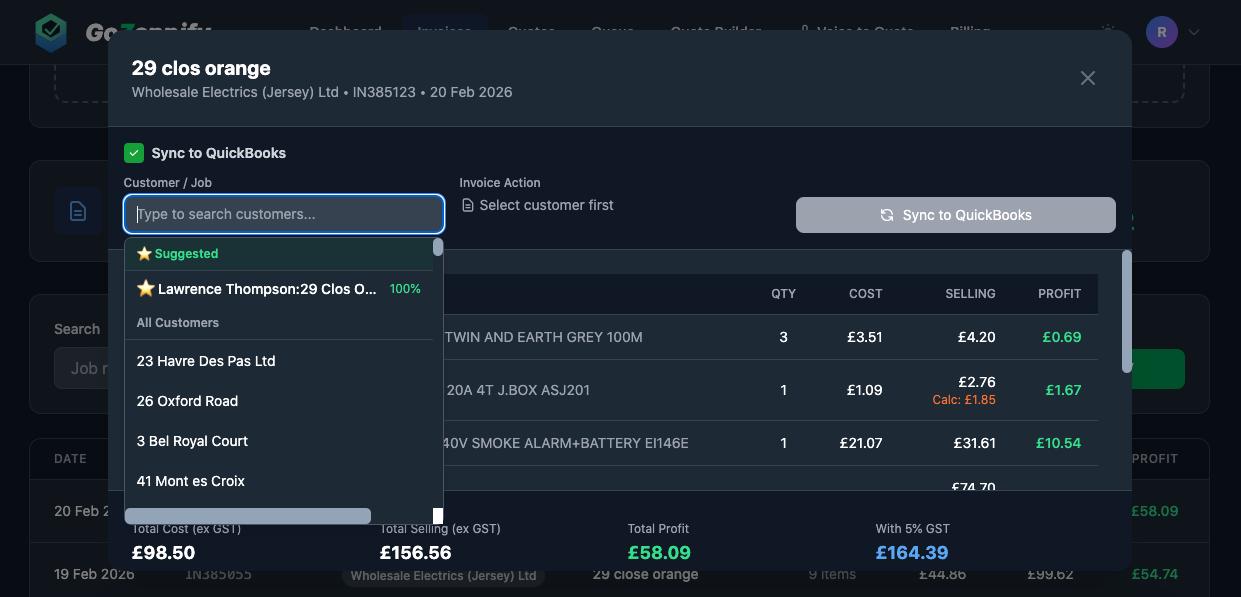
Click "Sync to QuickBooks" (or Xero) button
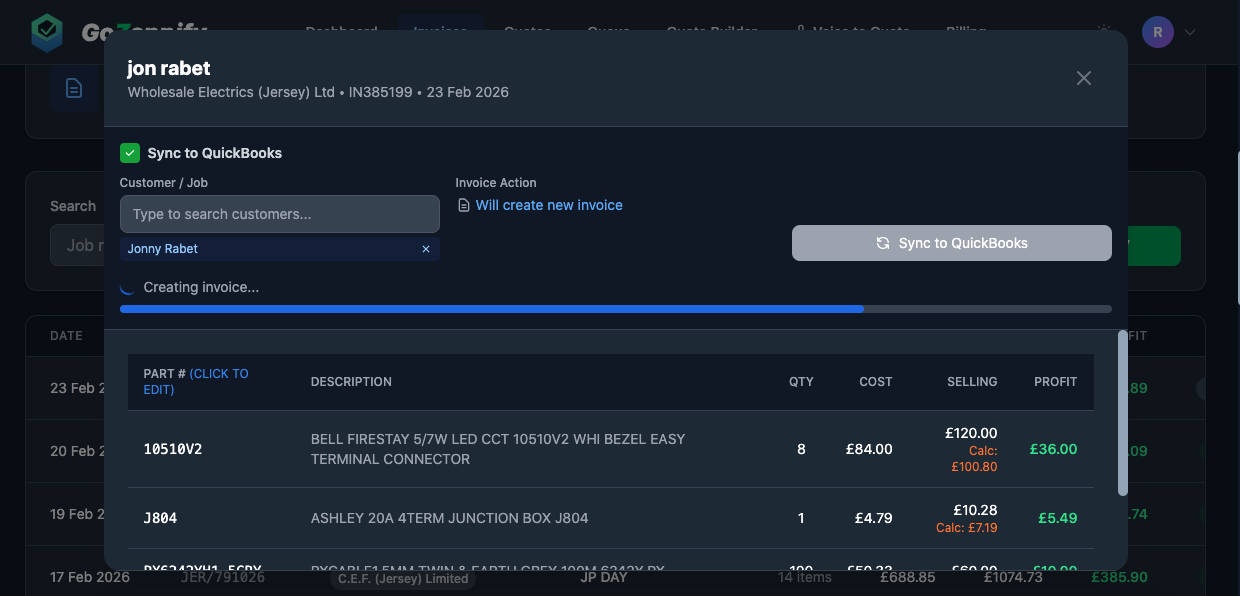
Done! Products are synced and an invoice is created/updated in your accounting software
🎯 Smart Customer Matching
GoZappify reads the job reference from your invoice and automatically suggests matching customers from QuickBooks/Xero. Matches with 80%+ confidence are selected automatically.
Smart Draft Merging
If a draft invoice already exists for a customer, GoZappify will add items to it rather than creating a new invoice. If the same product already exists on the draft, quantities are combined automatically.
Editing Part Numbers
Correct OCR mistakes and train the AI
Sometimes the AI misreads part numbers, especially from photos. The good news? You can correct them, and GoZappify learns from your corrections!
How to Edit a Part Number
Open an invoice and find the incorrect part number
Click on the part number - it becomes editable
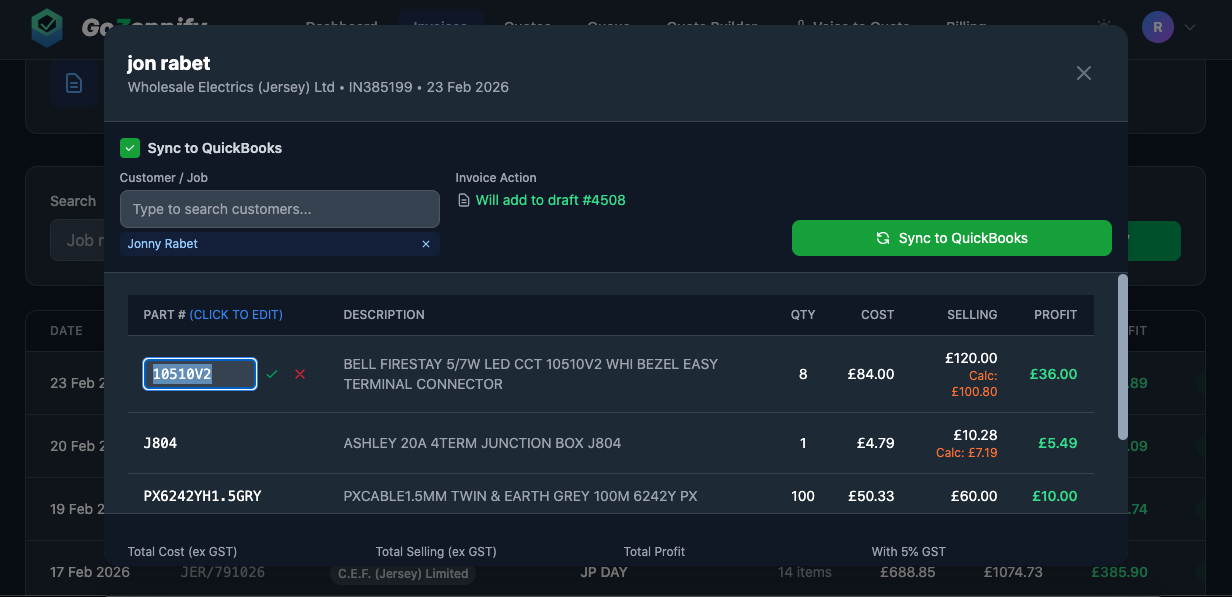
Type the correct part number and press Enter (or click ✓)
The correction is saved and GoZappify learns it for future invoices!
🧠 How the Learning System Works
When you correct a part number (e.g., "2MBZWH" → "2MRB2WH"), GoZappify remembers this correction. Next time it sees "2MBZWH" on any invoice, it will automatically correct it to "2MRB2WH".
The more you use GoZappify, the more accurate it becomes!
Common OCR Mistakes
These characters often get confused during scanning:
Zero vs Letter O
One vs I vs L
Two vs Z
Five vs S
Six vs G
Eight vs B
M vs W
V vs U
Quotes
Processing supplier quotations
Quotes work separately from invoices. Use the Quotes section to upload supplier quotations for job costing.
Invoices vs Quotes
📄 Invoices
- •For goods you've already received
- •Syncs to QuickBooks/Xero
- •Updates product costs and creates customer invoices
💬 Quotes
- •For pricing before you order
- •Helps with job costing and estimates
- •Doesn't sync to accounting software
💡 Tip: If you accidentally upload a quote to the Invoices page (or vice versa), GoZappify will detect this and suggest you use the correct section.
Settings
Configure your GoZappify account
Access settings by clicking your profile icon in the top right corner and selecting "Settings".
🔗 Integrations
Connect and disconnect QuickBooks Online or Xero. View connection status.
💰 Markup Settings
Set your default markup percentage for calculating selling prices from cost prices.
🏢 Business Details
Update your business name and contact information.
💳 Subscription
Manage your subscription, view billing history, and update payment details.
Frequently Asked Questions
Quick answers to common questions
Yes! You can upload and process invoices without connecting accounting software. You'll still see all the extracted data and pricing. However, to sync products and create invoices automatically, you'll need to connect QuickBooks or Xero.
OCR (optical character recognition) sometimes misreads characters, especially from photos. Simply click the part number to edit it - GoZappify will learn your correction and apply it automatically next time!
You can delete any invoice from the invoices list by clicking the red delete button. This won't affect anything already synced to your accounting software - you'd need to delete that separately in QuickBooks/Xero.
GoZappify reads the job reference from your invoice and searches your QuickBooks/Xero customers for matches. It looks at customer names, job names, and reference fields. The best matches are shown with a confidence percentage - high confidence matches (80%+) are selected automatically.
Each product needs to be checked against your accounting software, and new products need to be created. For an invoice with 10 items, this might take 10-20 seconds. The progress bar shows you what's happening.
Your selling price is calculated as: Cost ÷ (1 - Markup%)
For example, with a 30% markup: £10 cost ÷ 0.70 = £14.29 selling price. You can set your markup percentage in Settings.
Yes. All data is encrypted in transit (HTTPS) and at rest. We use secure OAuth connections to QuickBooks and Xero - we never see or store your accounting login credentials. Your uploaded invoices are processed and stored securely.
GoZappify is optimised for YESSS Electrical, CEF, and Wholesale Electrics. Other suppliers may work but with varying accuracy. Contact us if you'd like us to add support for a specific supplier.